My Step By Step Process To Redesign A Feature With Cursor + Claude Sonnet 4.0
This article is my step-by-step adventure in untangling a confusing interface using Cursor and Claude Sonnet 4.0. If you’ve ever wondered how AI can turn “I have no idea what’s happening” into a streamlined user experience (or if you’re just looking for new ways to poke fun at your own codebase) you’re in the right place.
Step 1 — It starts with a problem
The multi-search feature makes people hesitate. They have two doors to start with, the natural language search bar and the advanced filters. Do I type or do I click? How do they work together? What happens when I update the filters?
That was the dilemma I set out to untangle.
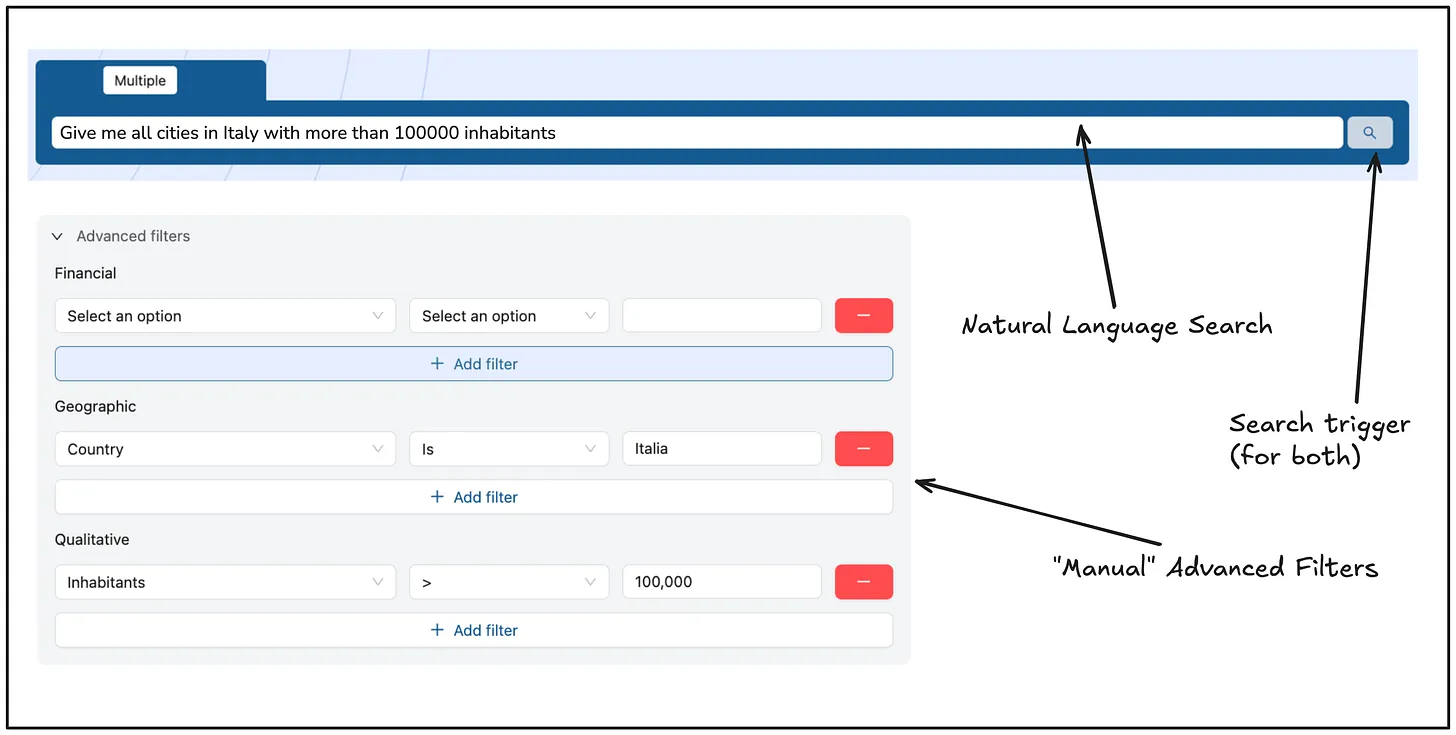
Before jumping into sketching mode, I wanted to understand a bit better what users do with this feature on a daily basis:
- Who uses this and for what business outcomes?
- Where does it fit in their day?
- How do they actually run searches?
- How do results drive decisions?
Who uses this and for what business outcomes?
They’re mostly younger professionals (think recent graduates or early-career specialists) working in research or consulting roles. Sometimes slightly more experienced folks join in, but it’s mainly junior people gathering and analyzing information about companies or organizations for their team.
Where does it fit in their day?
They use this tool in two main ways — for discovery and for comparison:
- When they’re in discovery mode, they look for as many organisations as possible that fit certain criteria, casting a wide net to see what’s available in a given market or sector.
- When comparing, they already have a shortlist and just want to stack them side-by-side, usually to look at certain numbers or facts over several years.
How do they actually run searches?
If they’re exploring (discovery), they start super broad and then narrow things down by adding filters one after another, like filtering first by type, then by location, then by financial or qualitative details, and so on. It’s all about shrinking a big crowd down to a manageable few that fit exactly what they need.
How do results drive decisions?
The end result is the starting point for the next steps in their project. They share it around internally with their colleagues or supervisors to decide which targets are worth focusing on. From there, the team will do more digging and eventually reach out to the organizations or companies that stand out as most promising.
What stuck with me was that users “narrow things down by adding filters one after another to find exactly what they need.”
And that’s exactly where the existing UI is confusing. What’s the entry point? Do I start from a natural language query? Or from the advanced filters? What’s the process once I get the initial results? Do I keep updating the query or do I move my focus on the manual filters? How do I trigger them again?
At this point I could just guess, so it was time to start experimenting.
Step 2: Prototyping With AI (directly on the codebase)
Prototypes are a great communication tool to get feedback on our crazy ideas before committing to build them properly.
You can build prototypes in multiple ways:
- Low-fidelity, such as paper sketches and wireframes
- Medium-fidelity, like interactive mockups that allow basic navigation
- High-fidelity, which are near-final versions with most or all functionality and design
The one to use is the one you think it’s best for the job. In my case, I decided to build the prototypes within the context of the app, so that my client could taste the new experience with real data and interactions.
Thanks to AI, the cost of high-fidelity prototypes is now close to zero. While there’s a risk of focusing too much on details like where to place a button instead of the important stuff, that’s avoidable with the right mindset. So I made sure my clients knew I was using AI, and that the prototypes were far from being polished or “production-ready”.
A few hours of prompting on Cursor + Claude Sonnet 4.0, and I got 3 working prototypes, each one of them using real data and integrating perfectly with the rest of the app.
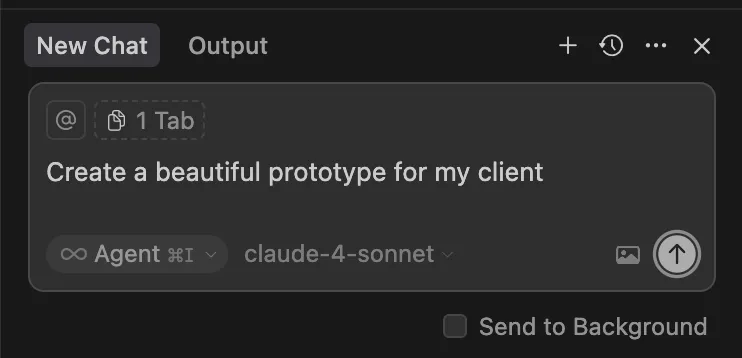
Of course I didn’t let Cursor go wild without direction. I had a clear vision in my head on how I wanted the prototype to look like and behave.
Trick — Use Cursor rules for better context When working with Cursor, it’s useful to provide some context on the product’s domain. I created a Cursor rule with the full description of the customers and users persona, what problem the product solves and how it solves it. It helps Cursor make better choices regarding design and technical decisions.
Step 3: Test, test, test (or you’re gambling)
Testing prototypes is a non-negotiable step, unless you’re working on a very small change where the cost of making the wrong bet is very low.
Testing prototypes is testing assumptions. It’s testing that you’ve understood the problem correctly and that the solution you found makes sense.
Unfortunately, for this project I didn’t have access to my client’s customers. I prefer to run tests with at least 5 users, because by the 5th one you’ll likely notice some recurring patterns to investigate.
I was able to run the test with only one of the founders (who’s not a technical person and who also uses the product). We set up a call, I provided a broad task to perform and I let him play with the 3 prototypes while watching him doing it.
This is where I saw an interesting thing: after starting the research using the natural language query, he kept going back to it to add more parameters and run it again. Over and over. He never touched the manual filters.
Apparently that’s how their customers use it most of the time, and the advanced filters are more for “power users”. With this new information, I refined the prototypes to simplify the whole experience, focusing it on using the natural language query first and taking the advanced filters out of the scene. In this way non-power users would have less things going on the screen, and a more streamlined experience.
The end result looks like this:
- Users start by using the natural language search bar, being the only entry point. They also get a preview of the number of possible results, so they can decide to fine-tune the query even further.

- The results show up. The advanced filters are hidden.
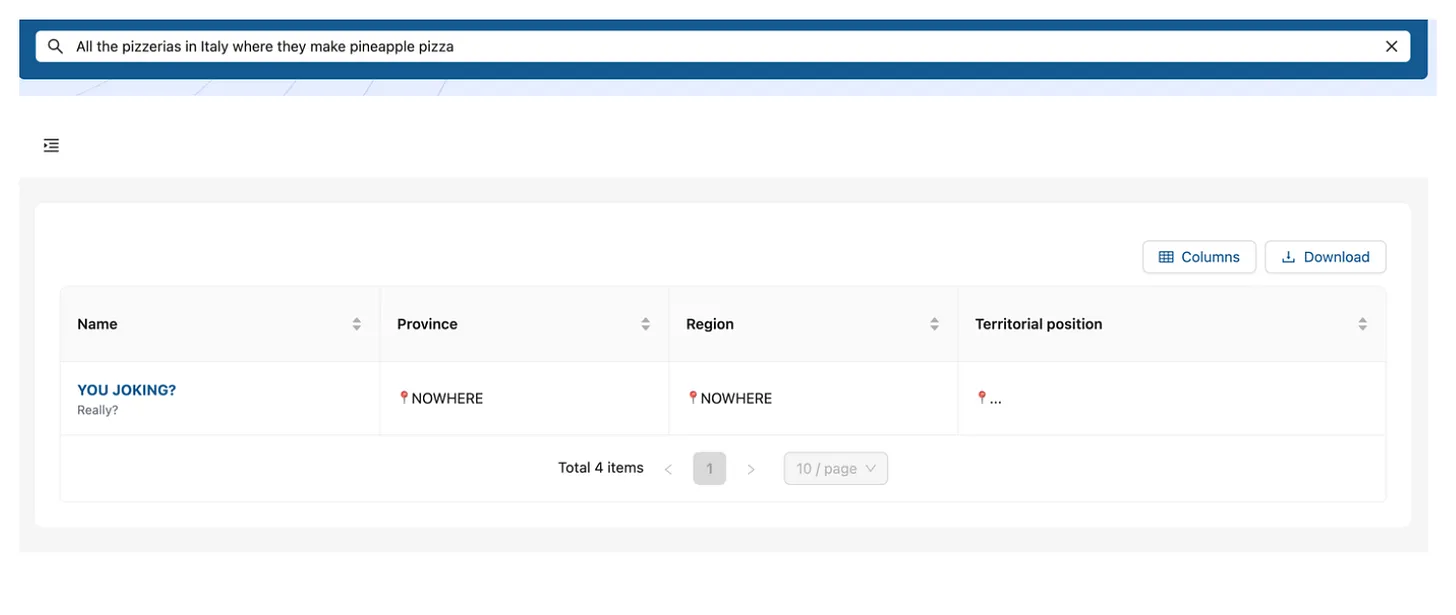
- The advanced filters can be opened if needed.
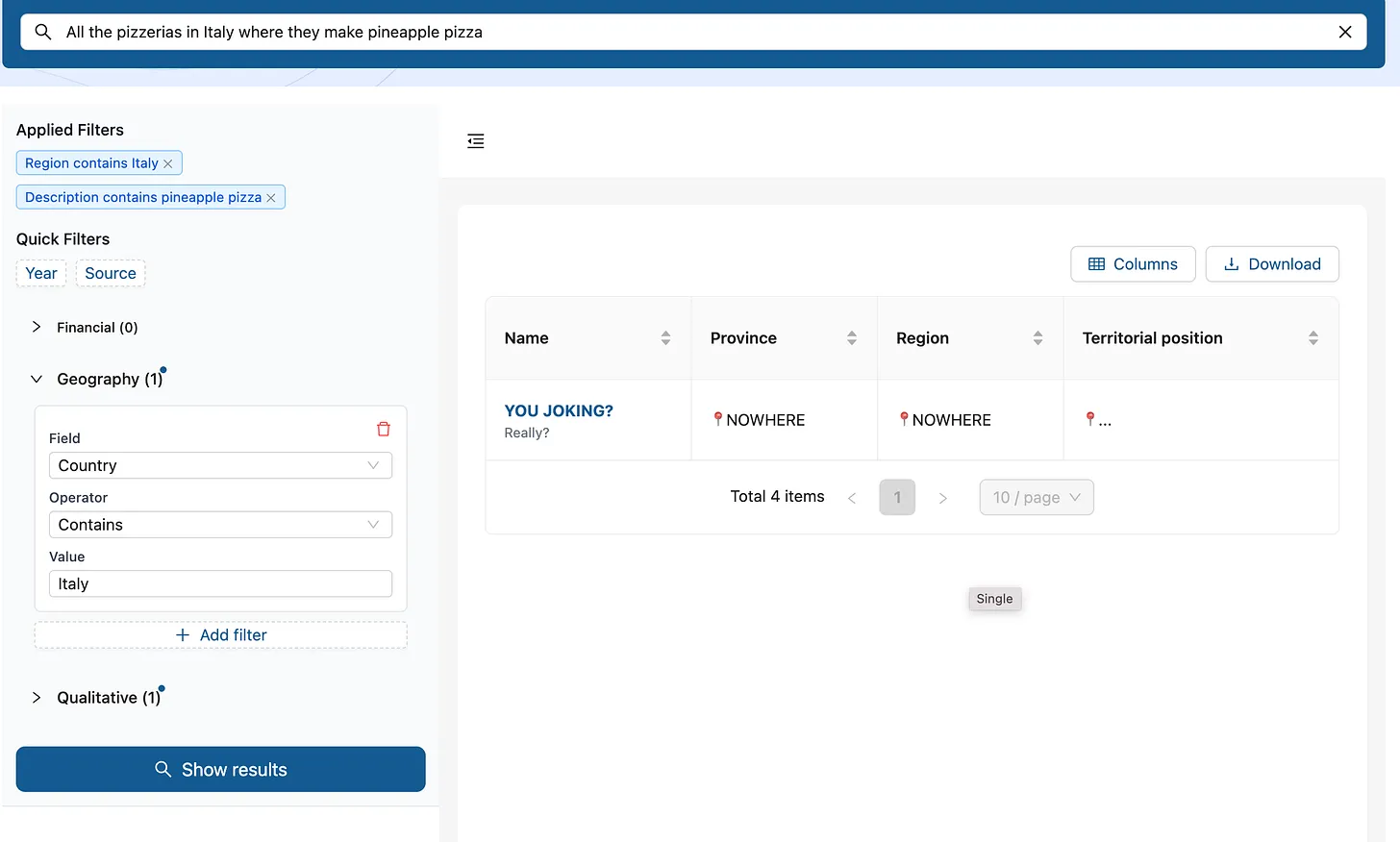
Step 4: Check On Impact
Once the new solution is out in the wild, don’t pat yourself on the back and call it a day — the real work just started. Keep talking to users, watch how they actually behave (not what they say they’ll do), and iterate based on their feedback. Ideally, even before going all in with one solution, you should show your prototypes to different user groups to see which version makes people less confused and more productive.
The High Level Process
- Start with clear objectives: Define what you want to test or validate before generating prototypes
- Use structured prompts: Provide detailed, specific descriptions to AI tools for better results
- Iterate rapidly: Take advantage of AI’s speed to explore multiple variations quickly
- Maintain human judgment: Use AI output as a starting point, not a final solution
- Progressive enhancement: Begin with low-fidelity AI-generated wireframes and gradually increase fidelity as concepts solidify
Caveats: When This Approach Doesn’t Make Sense
Of course, like using a leaf blower to clear your kitchen table, AI-enhanced prototyping isn’t always the answer. Sometimes you just need a napkin sketch. If you’re reinventing something that’s already simple (like the “Submit” button) or working on a team allergic to change, introducing AI may spark more confusion than creativity. And if your AI-generated prototype suggests adding blockchain and a virtual assistant named “Larry,” maybe it’s time to step away from the screen and reconsider your life choices, at least until your coffee kicks in.
Hey! I’m Peppe, and I’m a freelance Product Engineer.
Are you shipping fast but unsure of your impact? My Product Experiments as a Service helps you validate ideas, learn quickly, and build what truly matters, before full development.
Ready to transform your workflow and get real answers?
📅 Book a call: https://cal.com/giuseppe-silletti/virtual-coffee-peppe ✉️ Email: himself@peppesilletti.io